Setup Guide
Get InsiderLingo running with your team's glossary in under 5 minutes.
Before you start
Chrome Browser
InsiderLingo works as a Chrome extension
Google Sheets Access
You'll need to create or access a team glossary sheet
Edit Permissions
Ability to publish a Google Sheet to the web
Step-by-step setup
Install the extension
30 secondsAdd InsiderLingo to Chrome from the Chrome Web Store.
The extension icon will appear in your Chrome toolbar
Prepare your Google Sheet
3 minutesCopy this template to get started quickly
Create or format your glossary with the right column structure.
Required columns (with example data):
| Term | Definition | Category | Aliases | Expert | Context |
|---|---|---|---|---|---|
| OKR | Objectives & Key Results | Management | OKRs, Objectives | @jondoe-slack | Quarterly goal setting framework, our company sets these annually and revisits them quarterly. |
| SEV | Incident severity level used to prioritize outages | Engineering | Severity | @tech-team on slack | This is how we qualify and priroitize importance of an outage, a sev 1 impacts 75%-100% of customers, sev 2 impacts less than 75% of customers, sev 3 impacts less than 50% of customers |
| WAU | Weekly Active Users | Management | weekly active users | @jimjones for any questions | Key growht metric we track to measure app engagement. |
💡 Pro tips:
- Term: Use the exact acronym or phrase people type
- Definition: Keep it concise but clear
- Category: Optional, helps organize large glossaries
- Aliases: List all altenrative ways people refer to this, comma separated
- Expert: Who is the go to expert for this term or topic
- Context: Any additional detail or information that a user should know
Publish your sheet as CSV
1 minuteMake your glossary accessible to the extension by publishing it.
Open the publish dialog in Google Sheets
Under Link → Select the 'Glossary' tab → Choose 'comma-separated values' format from the dropdown
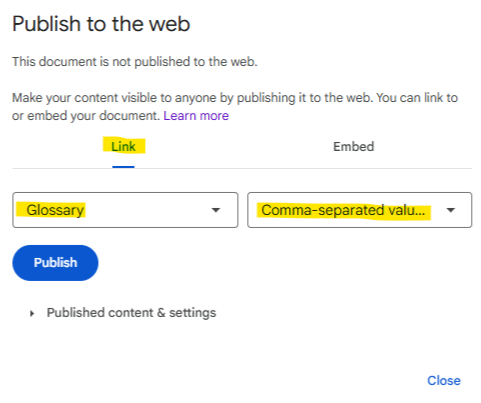
Save this URL, you will need it in the next step
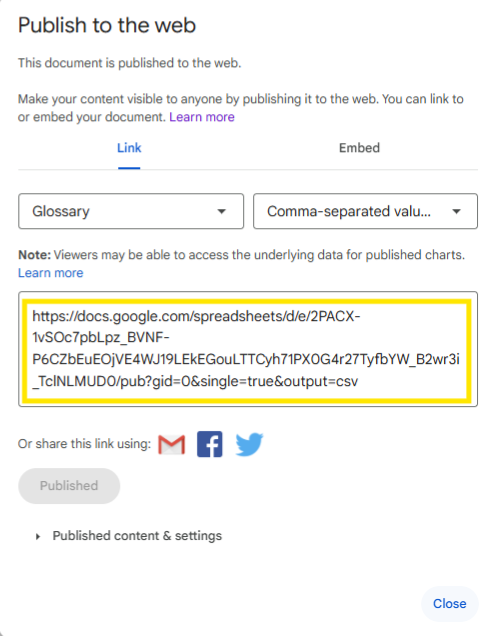
Connect to InsiderLingo
30 secondsAdd your Published Google sheet CSV URL to the extension settings
Find it in your Chrome toolbar (you may need to pin the extension for easy access)
In the "Glossary URL" field
The extension will fetch and cache your terms
Sharing with your team
Troubleshooting
Terms aren't showing up
Check these common issues:
- Make sure your sheet is published as CSV (not HTML)
- Verify column headers are exactly: Term, Definition, Category, aliases, expert, context
- Check that terms match exactly
- Try clicking "Reload" in the extension popup
Extension not working on some sites
Some websites have security restrictions that prevent extensions from running. This includes:
- Chrome internal pages (chrome://)
- Some banking or financial sites
- Certain enterprise applications
This is normal browser security behavior.
How to update the glossary
Simply edit your Google Sheet, no need to republish or update the extension. Changes will appear automatically within 24 hours, or you can manually refresh the cache in your local data for immediate updates by clicking on the extension icon → under the Settings tab → click "refresh cache.
Can I use multiple glossaries?
Currently, InsiderLingo supports one glossary URL at a time. You can combine multiple sheets into one master glossary, or switch between different URLs in the extension settings.
Ready to get started?
Install InsiderLingo and follow these steps to set up your team's glossary.